How to choose where alerts reach you — email and Slack
Set your alert email, connect Slack, pick a channel, and send a test.
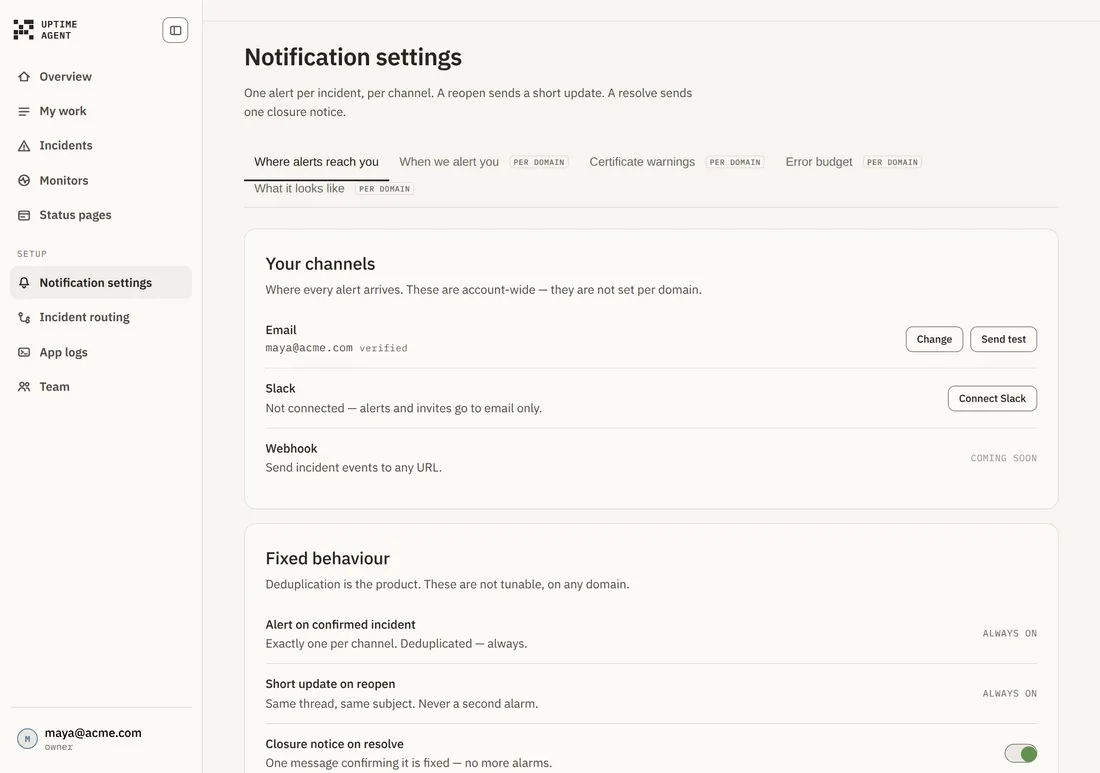
Channels are where every alert arrives. They are account-wide — they are not set per domain.
Open Notification settings in the sidebar. The first tab, Where alerts reach you, is the one you want.
Change your alert email
- Choose Change beside Email.
- Enter the address and choose Save.
A new address has to confirm before anything is sent to it. Use Send test to prove the path works before you rely on it.
Connect Slack
- Choose Connect Slack and authorise the workspace.
- Choose Change beside Channel.
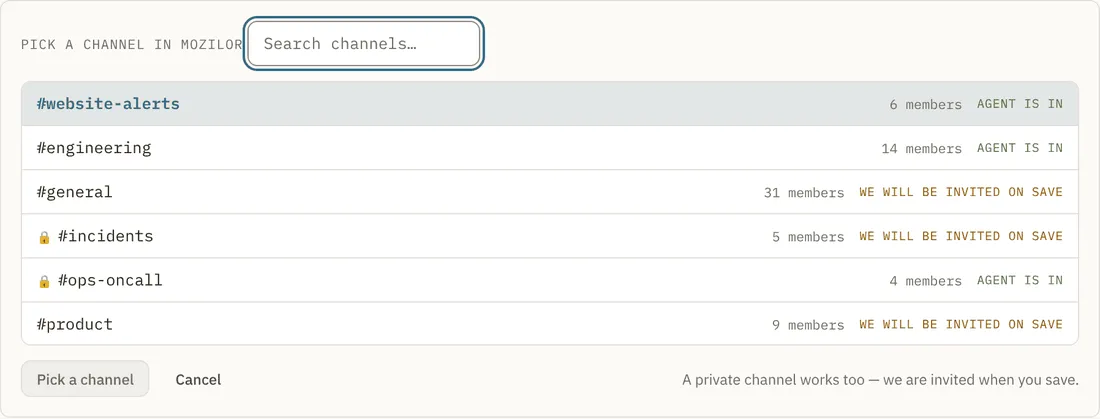
You pick from the channels that actually exist in your workspace, with member counts, rather than typing a name blind. Each row tells you whether the agent is already in that channel or will be invited when you save. A private channel works too — we are invited on save.
If the channel you want does not exist yet, type its name and choose Create #your-channel.
Every alert for every domain posts to this one channel. Use Send a test to confirm, and Disconnect to remove it.
With Slack connected, team invites go to both Slack and email, and responders get a direct message as well as the channel post.
Webhooks
Sending incident events to an arbitrary URL is marked Coming soon and is not available yet.
What you cannot change, and why
Deduplication is the product, so three behaviours are fixed on every domain:
- Alert on confirmed incident — exactly one per channel, deduplicated. Always on.
- Short update on reopen — same thread, same subject. Never a second alarm. Always on.
- Closure notice on resolve — one message confirming it is fixed. This one you can switch off.
What an alert looks like
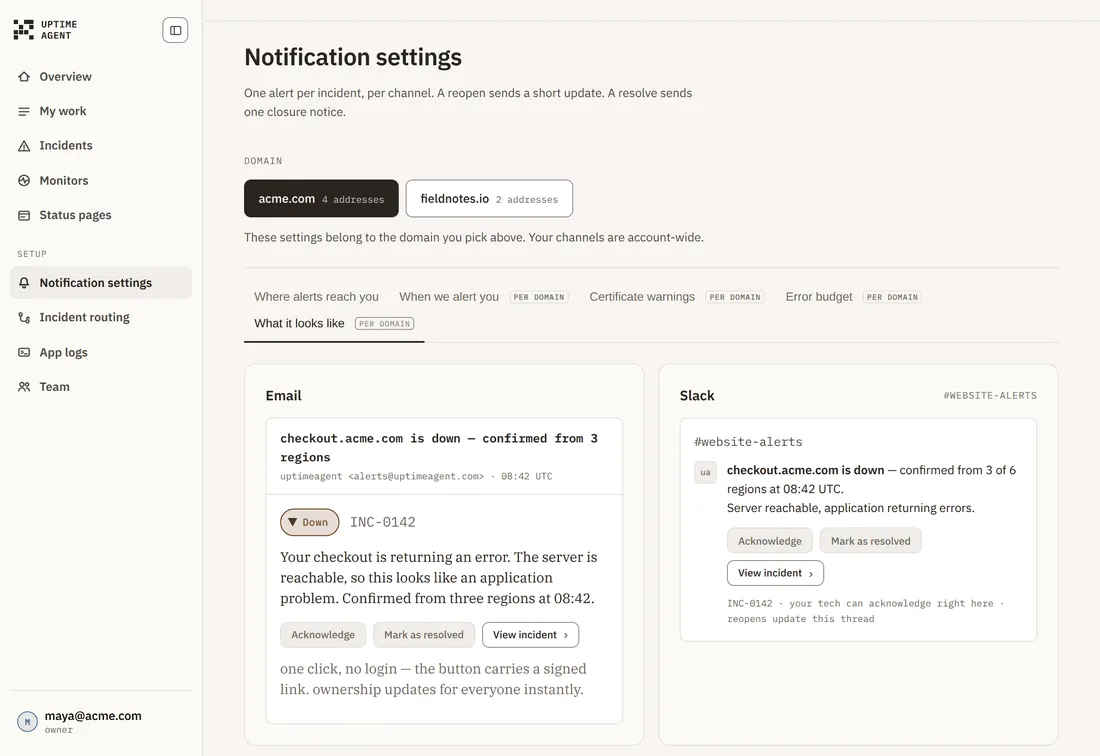
Both carry Acknowledge and Mark as resolved buttons. Those work with one click and no login — the button carries a signed link, and ownership updates for everyone instantly.
Troubleshooting
The test email never arrived. Check the address is confirmed — an unconfirmed address receives nothing. Then check spam for alerts@uptimeagent.com.
Slack posts nothing. If the channel row said “we will be invited on save”, confirm the agent is now a member. Private channels need that invite.
I am getting more than one alert for the same outage. You should not be. One alert per incident per channel is enforced. If you see duplicates, that is worth a support conversation.