How to publish your public status page
Put your status page live, choose which sites appear on it, and brand it.
Your status page is what customers see when they ask “is it just me?”. One page is created automatically for every domain you watch, and stays unpublished until you publish it.
Who can do this: Owner and DevOps.
How pages are grouped
Anything you watch on the same domain lands on that domain’s page automatically. acme.com, checkout.acme.com and api.acme.com share one page, because to a customer they are one company. A different domain gets its own page. You never sort them by hand.
Each page lives at your-domain-com.uptimeagent.com — the dots in your domain become hyphens, so acme.com becomes acme-com.uptimeagent.com (and www.acme.com shares it, because it is the same domain). If another workspace already holds that address, yours gets a short suffix, for example acme-com-k7f2. The suffixed address is permanent. The page is hosted separately — it stays up even when your site (or our app) is down. A custom domain such as status.acme.com is coming later.
Publish the page
Open Status pages in the sidebar.
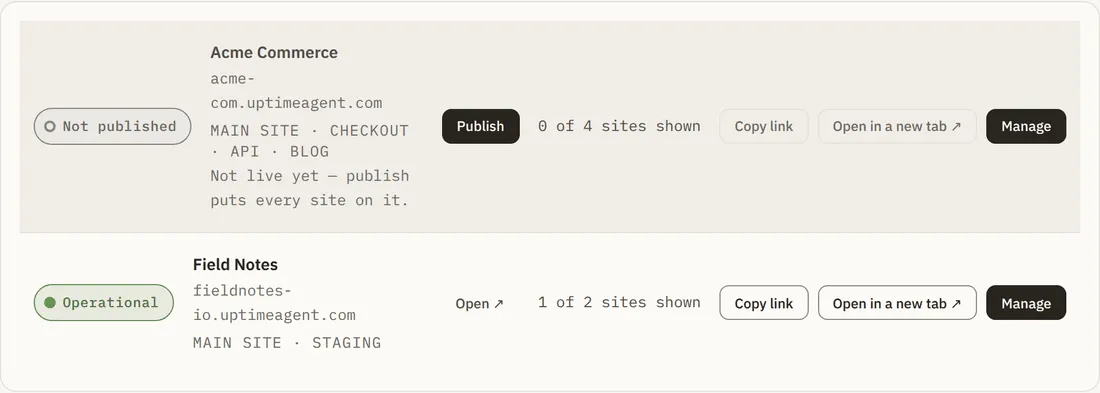
Choose Publish on the row. That turns every site on the page on at once and the page goes live immediately. You can hide individual sites afterwards.
Once live, the row gives you Copy link and Open in a new tab.
The two surfaces
Click a page name to reach its hub. Every domain produces two public surfaces that do different jobs.
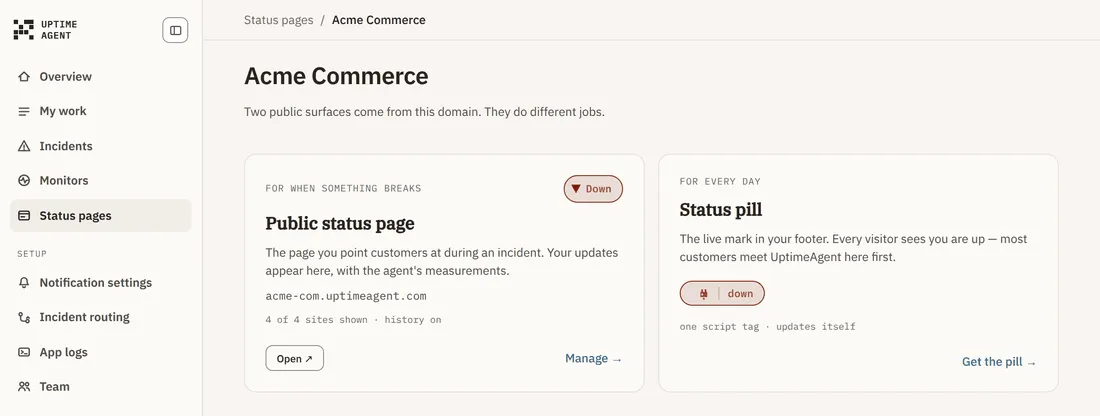
- Public status page — for when something breaks. The page you point customers at during an incident.
- Status pill — for every day. The live mark in your website footer. Covered in its own guide.
Choose Manage to configure the page.
Make it yours
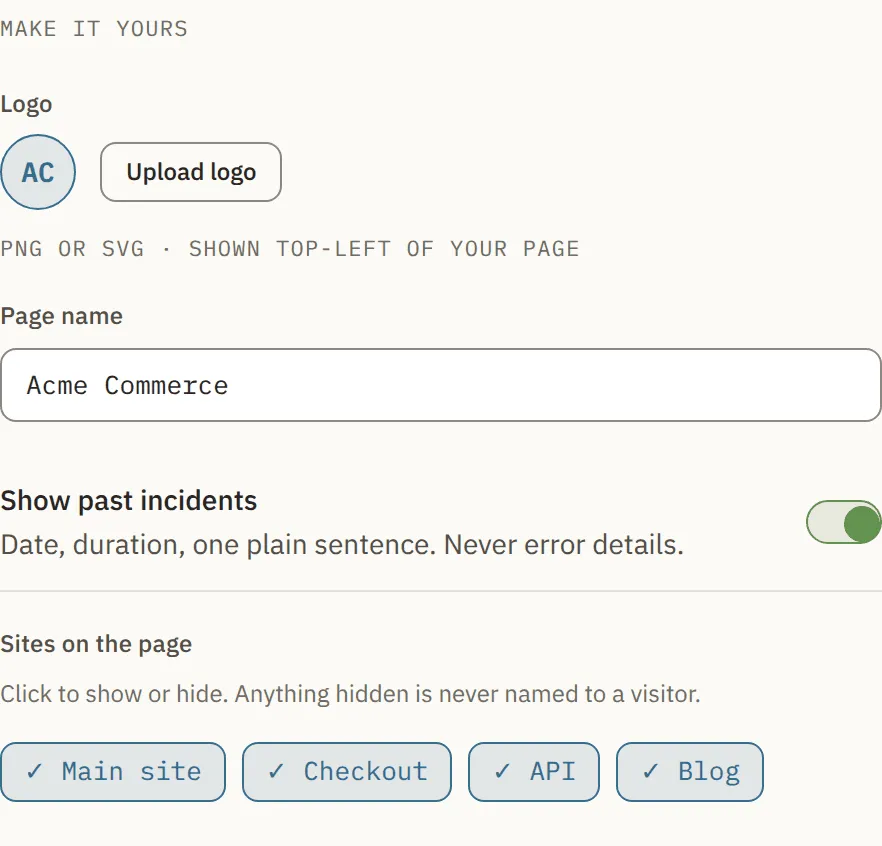
- Logo — upload a PNG or SVG. It appears top-left of your page.
- Page name — what visitors see as the title. Default is your domain.
- Show past incidents — date, duration and one plain sentence per incident. Never error details.
- Sites on the page — click any chip to show or hide that address. Anything hidden is never named to a visitor. Addresses that look internal (staging, for example) start hidden; switch one on only if it is meant to be public.
The live preview beside the settings shows exactly what a visitor sees as you change things.
What visitors see
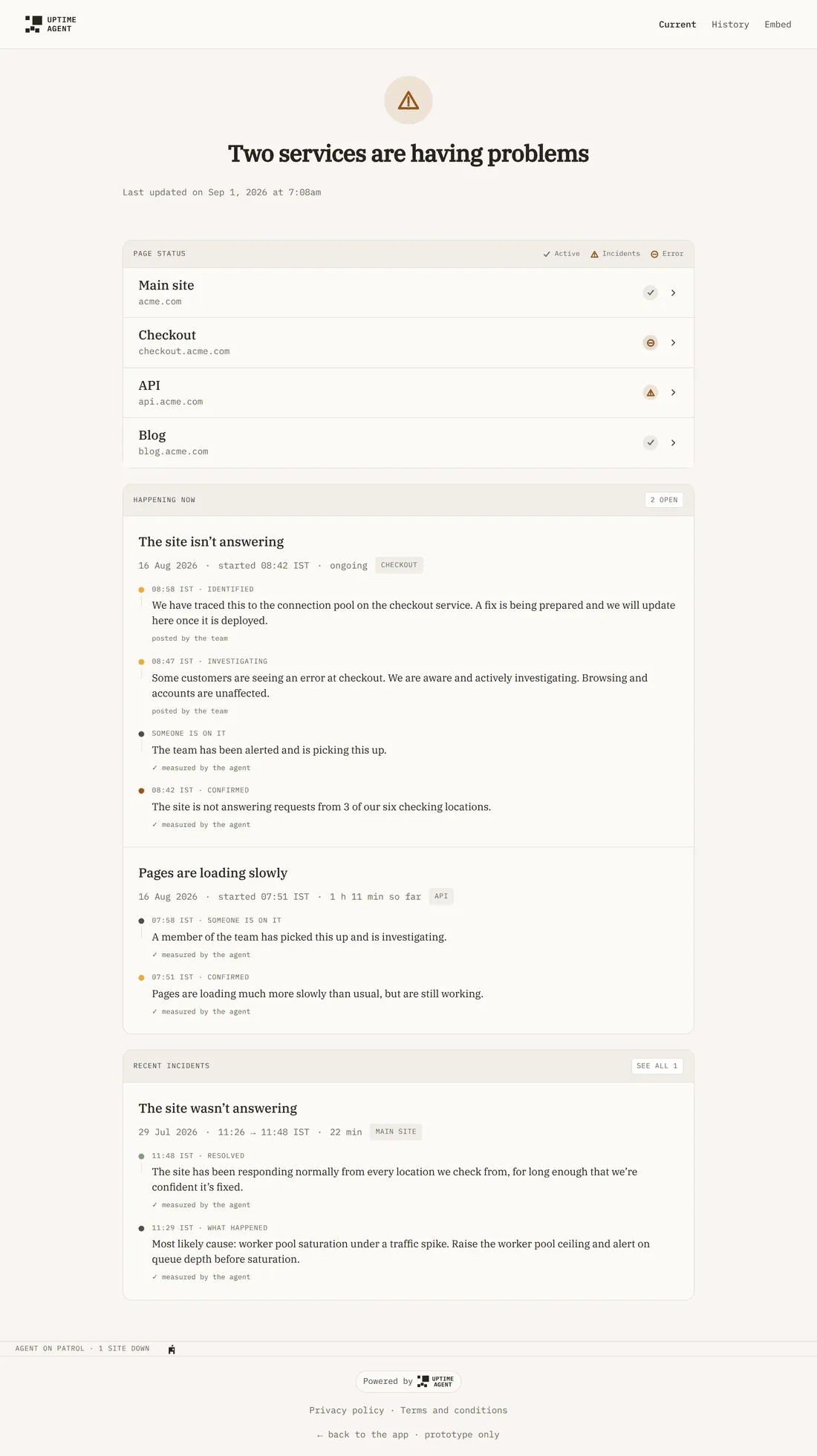
The headline states the honest count — “All services are online”, “One service is having problems”, and so on. Below it, each site you have switched on with its recent history.
During an incident, two voices appear on the page and they never share a byline:
- measured by the agent — what the checks observed.
- posted by the team — what you wrote.
The History tab lists resolved incidents if you have switched history on.
Add a page for a domain you do not watch yet
On Status pages, choose Add status page. A status page needs something to report, so this starts watching the domain at the same time. If you already watch it, you are taken to the page it already has.
Troubleshooting
Copy link and Open are disabled. Nothing is published yet. Publish the page first.
A site I watch is missing from the page. Its chip is switched off under Sites on the page, or it is on a different domain and therefore a different page.
I want to take the page down. A page is published for as long as at least one site is shown on it. Choose Manage, then under Sites on the page switch every chip off. Visitors then see an honest “not published yet” notice rather than a stale all-clear.